Wetter
Übersicht
The Weather plugin is an OsmAnd Pro paid feature  .
.
Die interaktiven Wetterkarten-Ebenen in der OsmAnd-App ermöglichen es Ihnen, Temperatur, Luftdruck, Wolkenbedeckung, Windgeschwindigkeit und Niederschlag in Ihrer Stadt oder an jedem anderen Ort auf einer interaktiven Weltkarte zu überwachen. Das Wetter-Plugin liefert stündliche Wettervorhersagen für 7 Tage im Voraus direkt auf der OsmAnd-Karte. Wetterinformationen können auch für die Offline-Nutzung heruntergeladen werden.
Die Datenquelle für das Wetter-Plugin ist das Global Forecasting System operated by the United States National Weather Service (NWS) and the European Centre for Medium-Range Weather Forecasts (ECMWF).
Erforderliche Einrichtungsparameter
Die folgenden Einstellungen sind erforderlich, um das Wetter auf der OsmAnd-Karte anzuzeigen:
1. Purchase OsmAnd Pro subscription.
2. Enable the Weather plugin in the Plugins section of the Main Menu.
3. Select the units of measurement for the weather occurrences.
4. Display the Weather layers on the map using the Weather menu item in the Configure map menu (remember to zoom out).
5. View the Weather forecast for the selected area (this menu allows the main screen of the OsmAnd map to be uncluttered with weather layers).
6. Download the weather forecast if you plan to use it offline.
7. Enable Weather widgets if you want to see up-to-date weather information on a daily basis.
The Weather plugin is only available with Map rendering engine Version 2 (OpenGL).
Wetter auf der Karte anzeigen
Wettervorhersage-Bildschirm
- Android
- iOS
Go to: Enabled plugin → Menü → Wetter
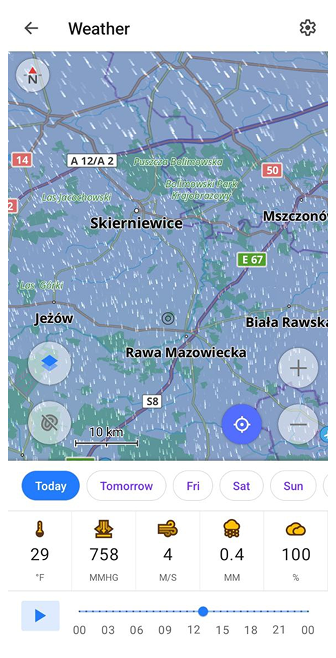
Go to: Enabled plugin → Menü → Wetter
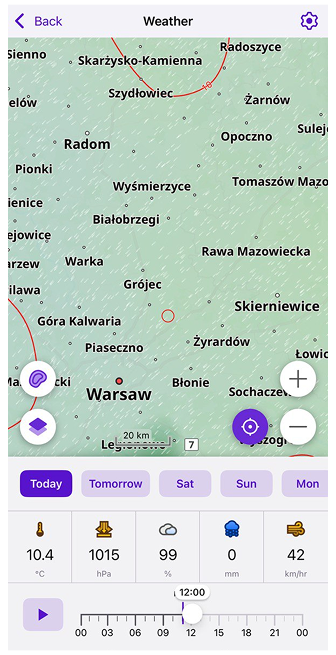
The main side menu has a dedicated Weather menu item that provides quick access to all weather tools. The Weather forecast screen displays information about temperature, atmospheric pressure, wind speed, cloud coverage, and precipitation.
The forecast values are shown for the map center, marked by a crosshair (black on Android, red on iOS). Move the map to change the selected location — the weather data updates automatically for the new point.
Am unteren Bildschirmrand befindet sich die Wetter-Symbolleiste. Mit den Tages-Schaltflächen und dem Zeitregler können Sie die genaue Zeit einstellen, zu der die Wettervorhersage angezeigt wird.
Datenquelle
- Android
- iOS
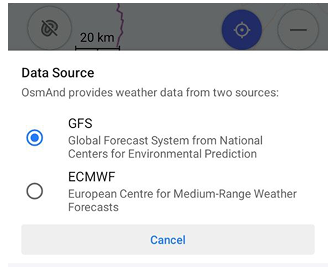
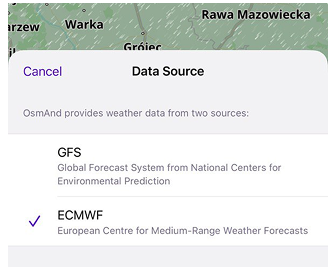
You can choose which weather forecast provider OsmAnd uses to display data on the Weather screen:
Menü → Wetter → ⚙️ → Choose Data Source
Zwei Wettervorhersage-Anbieter werden unterstützt:
GFS (Global Forecast System) – the default source operated by NOAA/NWS. Provides full weather data, including temperature, pressure, humidity, wind and cloud layers.
ECMWF (European Centre for Medium-Range Weather Forecasts) – an alternative forecast source. Offers high-quality temperature, precipitation and pressure data but does not provide wind or cloud information. When using ECMWF, unavailable parameters are displayed as “–”, and the corresponding weather layers appear disabled.
How Data Source affects the Weather display:
- The map, graphs, timeline and weather values on the screen update immediately after switching the source.
- Only the parameters available for the selected provider are shown.
- Weather widgets automatically refresh to use the chosen source.
- If you previously downloaded a weather forecast, OsmAnd uses the data corresponding to the selected provider.
- GFS and ECMWF use separate caches. Switching the source loads or updates the relevant weather tiles.
Wetter-Ebenen anpassen
- Android
- iOS
Go to: Enabled plugin → Menü → Karte konfigurieren → Anzeigen → Wetter
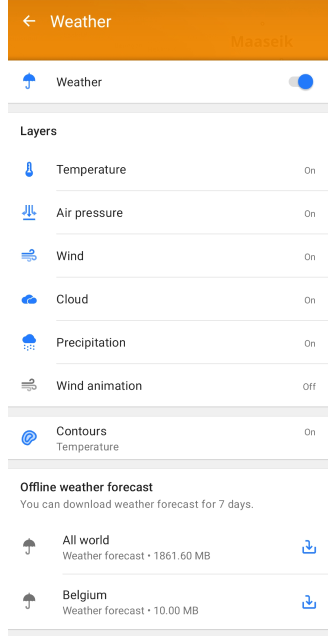
Go to: Enabled plugin → Menü → Karte konfigurieren → Überlagerung / Unterlagerung → Wetter
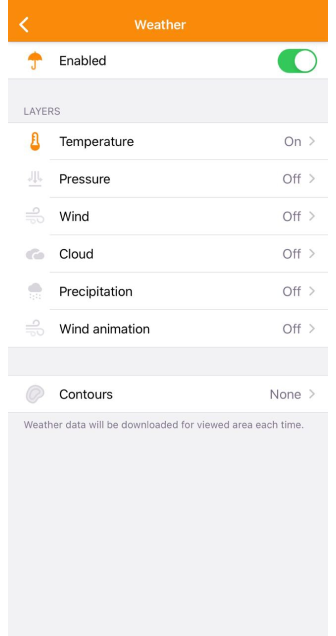
Um Wetter-Ebenen auf dem OsmAnd-Kartenbildschirm anzuzeigen, müssen Sie das Menü Karte konfigurieren verwenden. Gehen Sie zum Menü, suchen Sie den Punkt Wetter in der Liste (nur verfügbar, wenn das Plugin aktiviert ist) und tippen Sie darauf.
In diesem Menü können Sie die Sichtbarkeit und die Einstellungen für jede Ebene ändern, select the type of contour lines, and download the offline 7-day weather forecast (only available for Android here).
Wetter-Einstellungen
- Android
- iOS
- Main Menu → Plugins → Weather → Settings
- Main Menu → Settings → Profile → Plugin settings → Weather
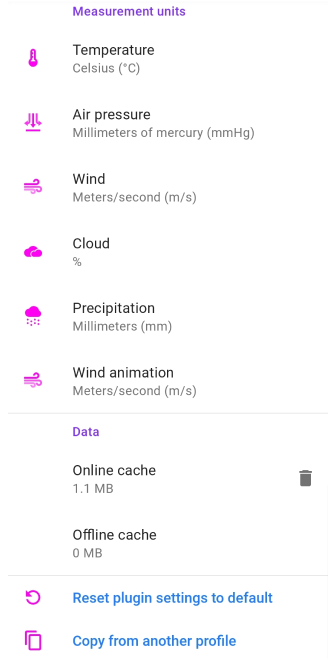
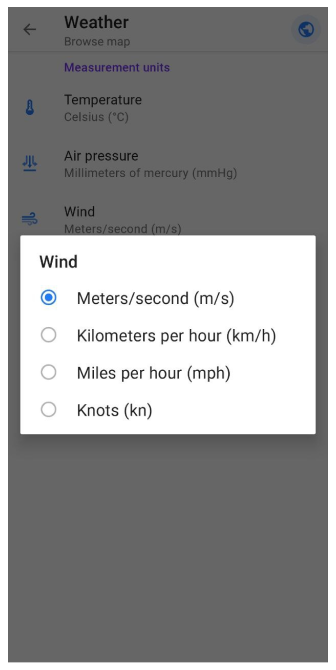
- Main Menu → Settings → Profile → Plugins → Weather
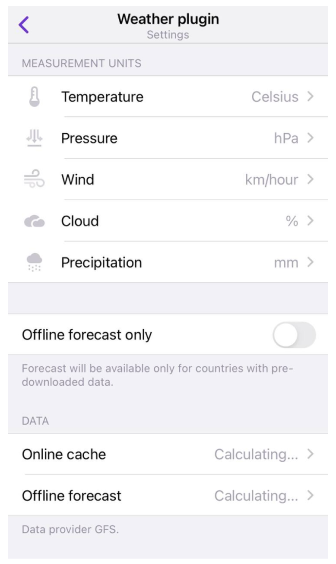
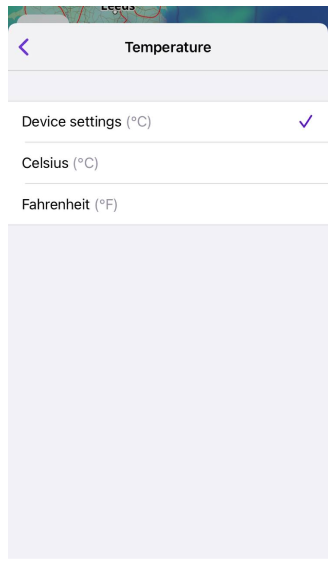
It is important to decide in which units of measurement it is convenient for you to see the Weather data on the map and in the Weather widgets section of the screen. You can choose appropriate units of measurement for each parameter or use default values (iOS only). In the iOS version of the OsmAnd app, you can also enable the offline forecast option to avoid using mobile traffic while traveling.
In the iOS version of OsmAnd, you can change measurement units and transparency level in the menu that opens after a long tap of the icon of the required map layer.
Wetter-Ebenen
Alle Wetterdaten werden als separate Kartenebenen dargestellt. Um die Wetter-Ebenen auf der Karte zu sehen, müssen Sie herauszoomen, sie sind nur auf den Zoomstufen 2-12 verfügbar. Wetter-Ebenen verwenden Wetterpaletten, um die Karte einzufärben, diese Paletten können bei Bedarf geändert werden.
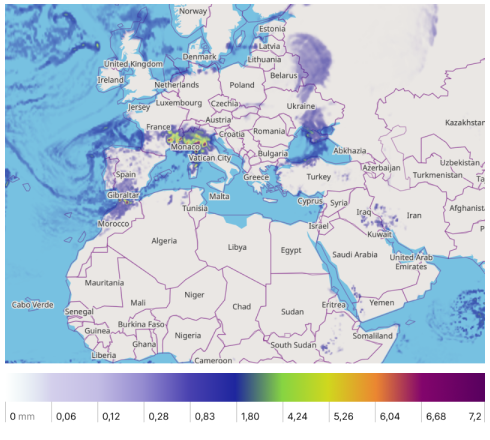
| Precipitation layer displays information about weather events when water in different aggregate states falls from the sky to the ground. Precipitation is rain, snow, sleet, or hail. The precipitation scale is graduated in millimeters (or inches) of water that falls on 1 square meter in 24 hours. 1 mm of rain corresponds to 1 liter of water per 1 square meter. |
 |
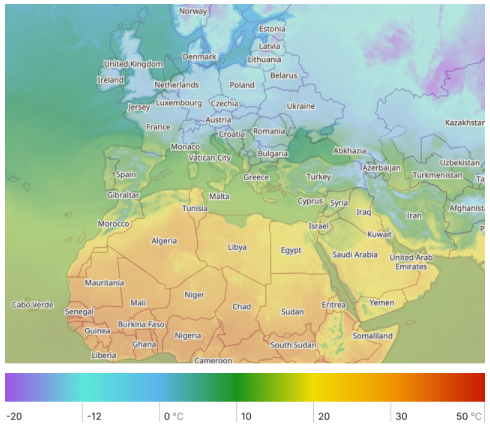
| Temperature expresses the quantitative perception of hot and cold. It is measured in degrees. In OsmAnd, you can choose between Celsius and Fahrenheit scale. |
 |
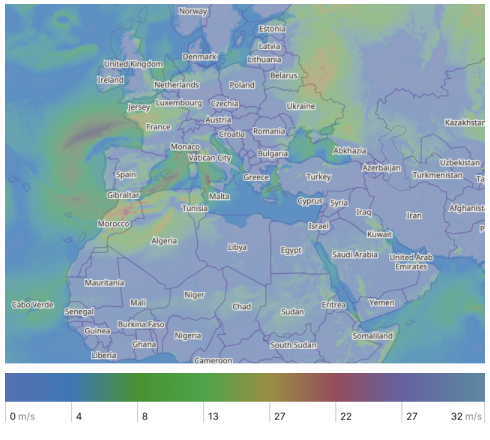
| Wind is the movement of air caused by the Earth's uneven heating by the sun and its own rotation. Winds can range from a light breezes to natural disasters such as hurricanes and tornadoes. In OsmAnd, wind speed can be displayed in meters per second (m/s), kilometers per hour (km/h), miles per hour (mph) and knots (kt). |
 |
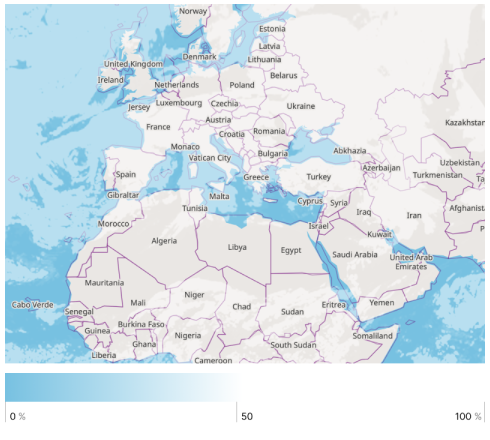
| Cloud coverage is the average fraction of the sky covered by clouds when observed from a particular location. It is measured in %. |
 |
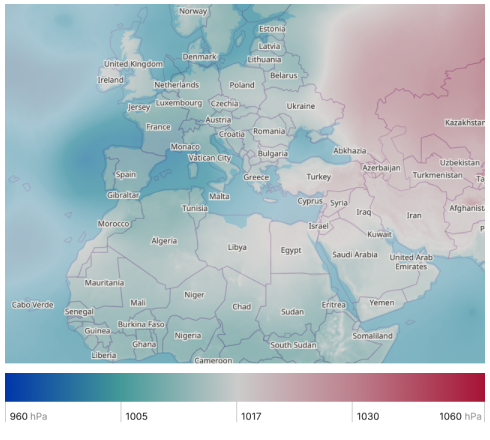
| Atmospheric pressure is caused by the weight of the air above the measurement point. It decreases with increasing elevation. Atmospheric pressure can be displayed in hectopascals (hPa), millimeters of mercury (mmHg), and inches of mercury (inHg). |
 |
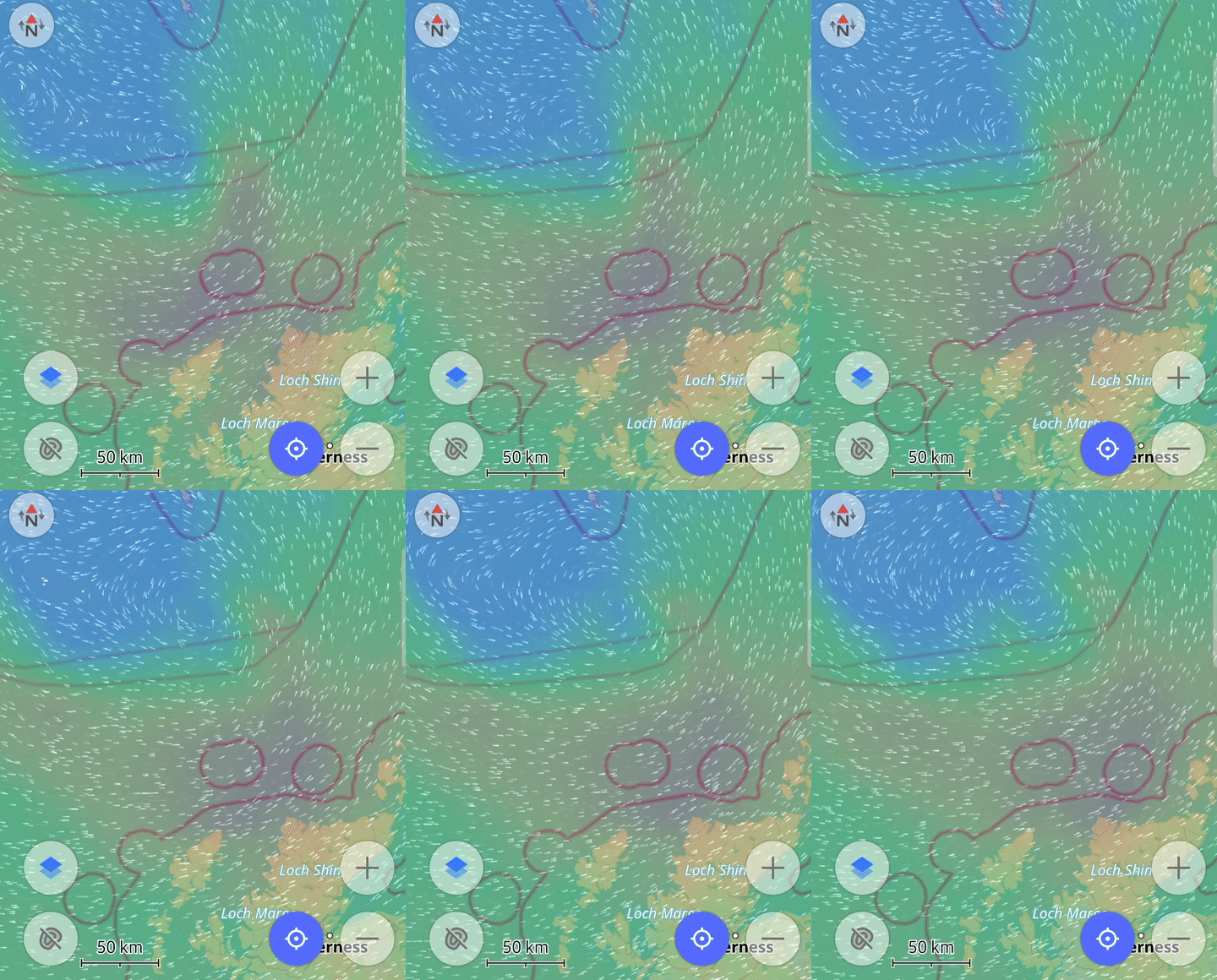
| Wind animation includes dynamic representations showing wind direction and speed across the region. |
 |
Karten kombinieren
- Android
- iOS
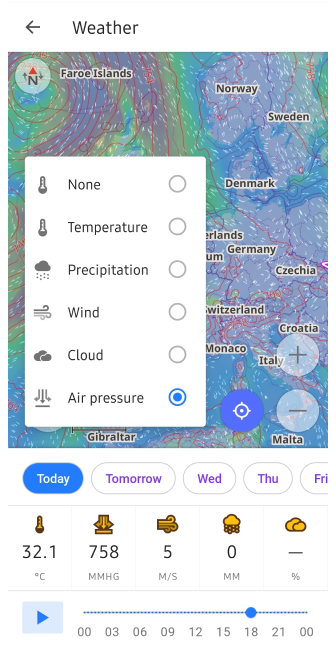
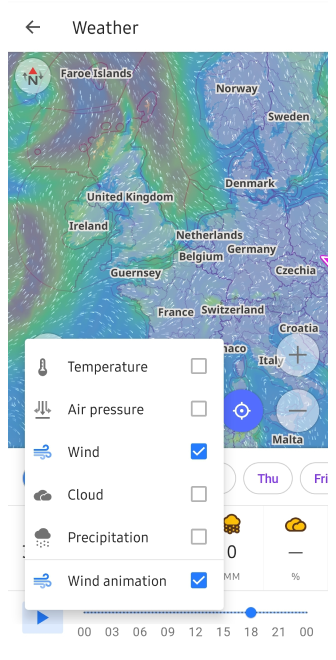
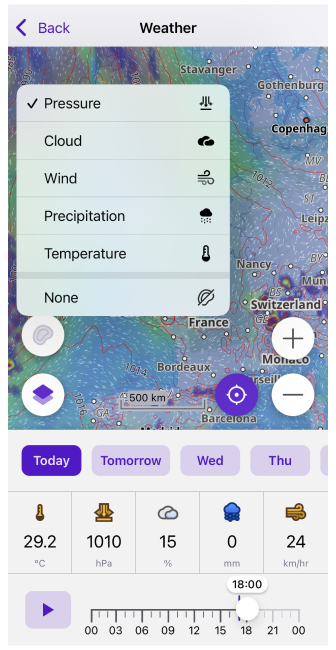
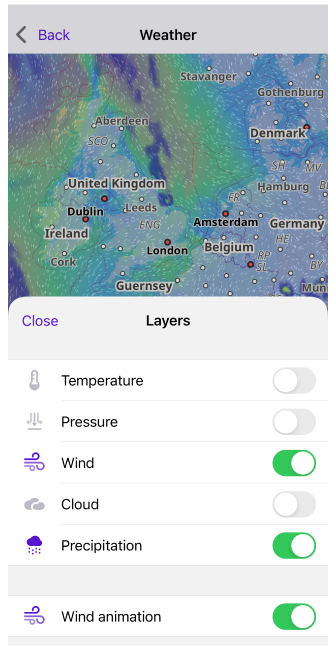
Um umfassende Wetterinformationen zu erhalten, können Sie die Kartenebenen separat verwenden oder einfach kombinieren. Isolinien eines bestimmten Typs können ebenfalls zur Wetter-Ebene hinzugefügt werden. Tippen Sie einfach auf die Schaltfläche Ebenen oder Isolinien auf dem Bildschirm.
Schnellaktionen für Ebenen
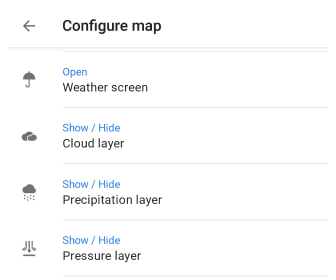
Um die Sichtbarkeit von Wetter-Ebenen umzuschalten, können Sie die Schnellaktions-Schaltflächen auf dem Kartenbildschirm verwenden. The general settings for showing or hiding layers can be found in the separate Weather section of the Main Menu. In the Quick Action article, you will find a list of the layers available for display. If you need quick access to this map configuration, use the Custom Button tool.
- Go to Add action: Menu → Configure screen → Custom buttons → Quick action → Add action → Configure map.
- Add one or more QA buttons to change the visibility of a particular weather layer.
Offline-Vorhersage
Cache
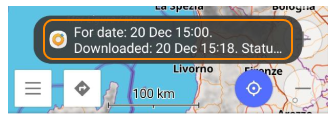
Wenn der Wetter-Tab geöffnet ist, unless otherwise specified, the required weather information is downloaded from the network. You can use the preloaded Weather forecast on your devices. The weather information is automatically cashed after downloading and can be used offline until the forecast expires.
On Android devices, you can check when weather data has been downloaded by tapping the Weather widget. The OsmAnd Development plugin must be enabled.
Vorhersage herunterladen
- Android
- iOS
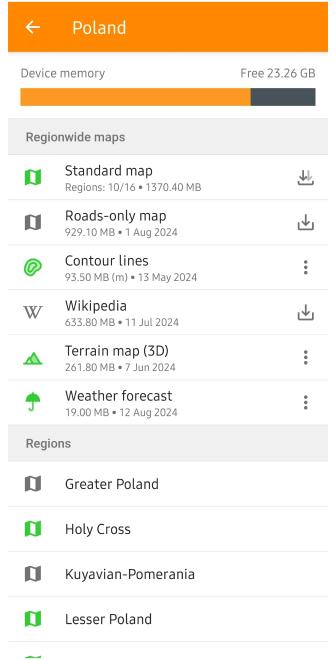
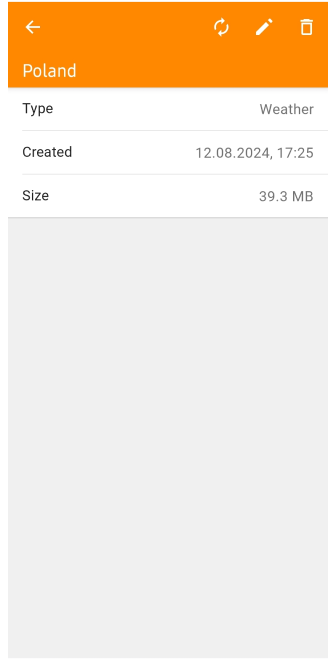
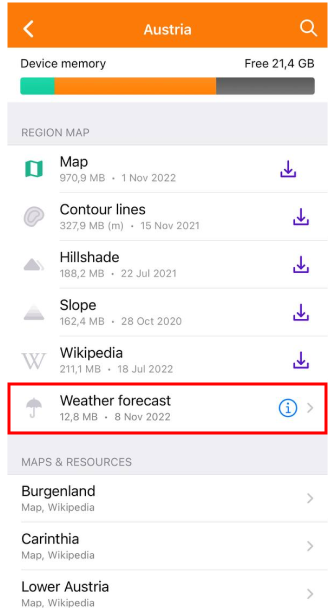
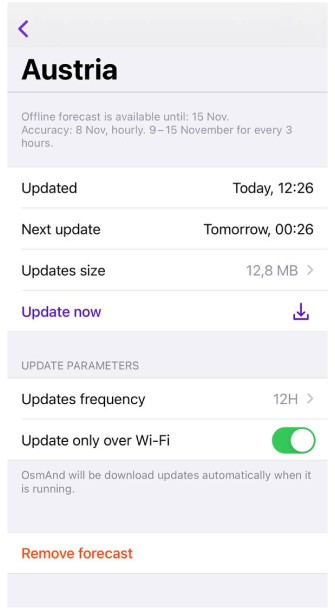
Für jedes Land können Sie eine Offline-Vorhersage (bis zu 7 Tage) herunterladen. The closer it is to the current date, the more accurate it will be. If you want to use the weather forecast offline, you should download the weather data in advance.
In the download forecast menu, you can obtain information and set parameters to keep the weather data up to date.
- Created (Android) / Updated (iOS). Shows when the last update was made.
- Next update (iOS). When the next update will be available.
- Size (Android) / Updates size (iOS). Shows the size of all updates.
- Update button (Android) / Update now (iOS). When active, allows you to update weather data manually without waiting for an automatic update.
- Update frequency (iOS). Can be set to 12-hour, 24-hour, or weekly.
- Update only via Wi-Fi (iOS). Enable this option if you don't want to use mobile data for downloads.
- Remove trash can button (Android) / Remove forecast (iOS). Allows you to delete all forecast data for this region.
- Edit pencil button (Android). Allows you to rename the weather file.
Note: Some countries, such as the USA and Canada, use a single Offline Forecast file for the entire country. This reduces the number of downloads and simplifies weather data management.
Wetter-Widgets
- Android
- iOS
Go to: Menü → Anzeige konfigurieren → Steuerelemente → Choose a panel → Wetter
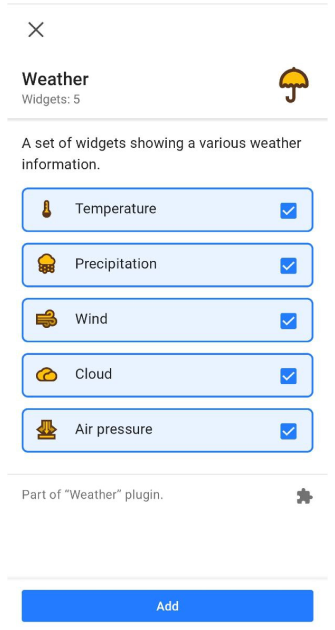
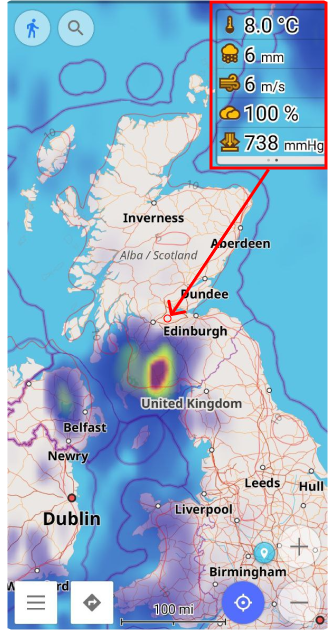
Go to: Menü → Anzeige konfigurieren → Steuerelemente → Choose a panel → Wetter
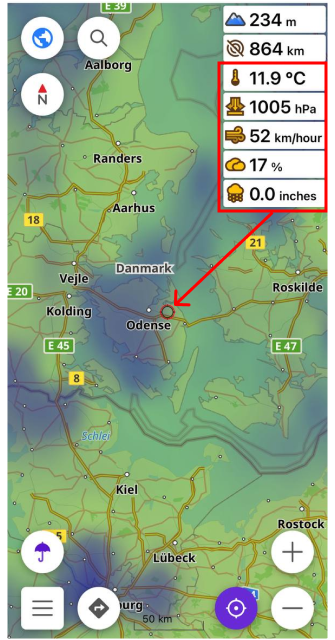
Weather widgets such as Temperature, Air Pressure, Wind, Cloud, and Precipitation show the current weather data for the central point on the map.
- Weather widgets are only displayed when the Weather screen is turned on.
- To activate weather widgets, select the Configure screen Main Menu item, the panel on which to place them, and the required widgets from the list.