OsmAnd Account
Overview
Signing in with an OsmAnd account turns the OsmAnd Web Planner from a simple map viewer into your personal workspace. The same account that you use in the mobile app connects the website to your OsmAnd Cloud data and purchases, so you can access your saved content and subscriptions in a single place on the web.
Authorization
Sign Up
To access OsmAnd Web features, you need to create an account. Use the Sign Up flow:
- Go to the OsmAnd Map Portal.
- Open the Account menu.
- Select Create new account. The Create new account dialog opens.
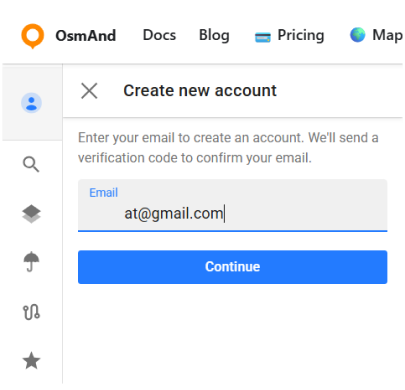
- In the Email field, enter the email address you want to use for your OsmAnd account and click Continue.
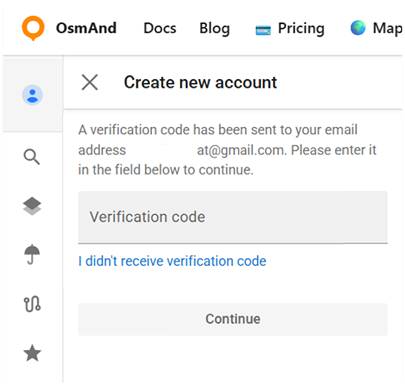
- A verification code is sent to this email address. Check your inbox (and spam folder if needed).
- In the next dialog, enter the Verification code and click Continue to confirm your email. If you did not receive the code, use the I didn't receive verification code link and follow the instructions.
After the code is verified, your web account is created and you are signed in automatically.
Login
If you already have an OsmAnd account, you can sign in on the OsmAnd Map Portal with the same email and password. Go to the Account menu and choose the Log in option. In the dialog that opens, enter the email address linked to your OsmAnd account, type your password, and select Continue. After a successful login, the OsmAnd Account panel opens and you can work with your data, purchases and settings.
Managing Account
My Data
You can download backups that were created and synced from your mobile device via OsmAnd Cloud.
Go to: General Menu → Account → My data (OsmAnd Cloud) → Download all
This section displays:
- The number of files stored in your cloud.
- Total storage volume used.
- Available cloud storage space.
💡 Only backups created on devices where OsmAnd Cloud is enabled will appear here.
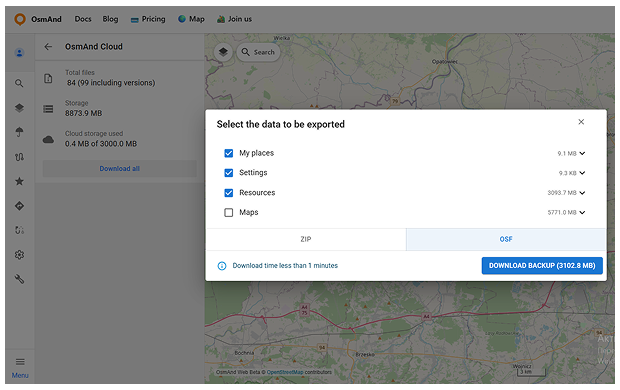
If you want to save a copy of all your data, use Download all. This opens a dialog where you can:
- Select which data to export (for example, My places, Settings, Resources, Maps),
- Choose the export format (ZIP or OSF).
- See an estimate of the download size and time.
Click Download Backup to start the export and save the archive to your computer.
Payments and Purchases
This section shows all products and subscriptions linked to your OsmAnd account. To open it,
Go to: General Menu → Account → Payments and Purchases
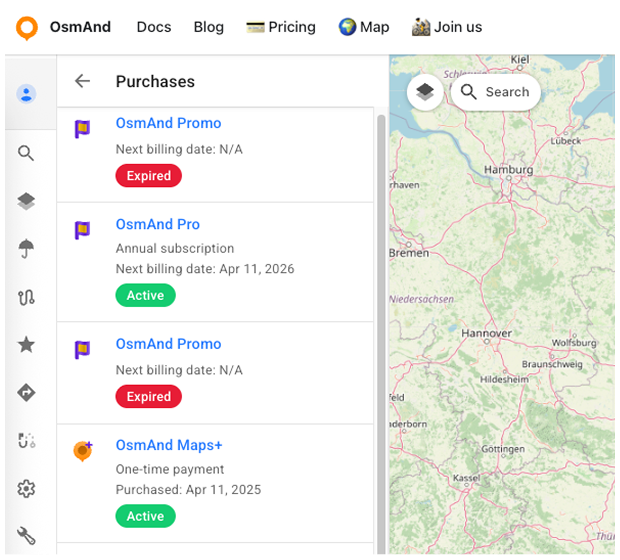
Here you can see a list of all purchases associated with your email:
- Free and paid plans (such as OsmAnd Start or OsmAnd Pro).
- One-time products (e.g. Maps+ or special editions).
- Subscriptions that renew monthly or annually.
For each item the list shows:
- Product name and icon.
- Type – monthly subscription, annual subscription or one-time payment.
- Status – Active, Expired or Canceled.
- Date information.
If you click a product in the list, the details page opens. There you can see where the product was purchased (Google Play, Apple App Store, Huawei AppGallery, Amazon or OsmAnd Web) and find a link or instructions on how to manage or cancel the subscription in the corresponding store. If the product was purchased on OsmAnd Web (FastSpring), the details page shows a Manage subscription link that opens the FastSpring account management portal, where you can update your payment method, cancel or re-activate the subscription, change the plan, or download invoices.
If there are no purchases linked to your account yet, this section shows an empty state with the message You don’t have any purchases and a Learn more button that leads to a page with available OsmAnd plans and upgrade options.
For more details on using your purchases across different platforms, read about cross-platform access.
Cloud Sync
Cloud Sync lets you access the data you synced to OsmAnd Cloud directly on the Web Map Portal. Once you sign in with your OsmAnd Start or OsmAnd Pro account, the website displays the Favorites, Tracks, and backup files that you previously synced from your mobile app. It’s a simple way to view your cloud content on a larger screen and download your backups whenever you need.
These items become visible in the menu right after you sign in on the website. To update this information, you need to sync your data from your devices using the Sync now action in the mobile app.
Cloud Sync availability depends on your account type:
- OsmAnd Start – syncs Favorites and displays them on the web.
- OsmAnd Pro – syncs Tracks, Favorites, and Backups, and unlocks full web access to cloud data.


OsmAnd Cloud
When you are signed in, the OsmAnd Cloud section appears in Menu → Settings and includes Changes and Trash.
Changes option shows a chronological list of files stored in your OsmAnd Cloud account. Items are grouped by month and include the file name, the type of change (for example, added, modified or deleted), the time of the last update and the device that created it. For each entry, you can open the three-dot menu and choose Download to save the selected file to your computer, or Delete.
Trash option contains files that were deleted from OsmAnd Cloud. The list is also grouped by month and shows when each file was removed and from which device. Use the three-dot menu next to a file to Download a copy, Restore from trash (return the file to OsmAnd Cloud so it becomes available again in your data), or Delete immediately to remove it permanently. This helps prevent accidental data loss while still letting you free up cloud storage when you are sure a file is no longer needed. You can also clear all deleted items at once by clicking the Trash icon in the Trash panel header. This opens the Empty trash dialog, where you confirm deletion to permanently remove all files from Trash.


Connected Apps
The Connected Apps section allows you to link external services to your OsmAnd account. Currently, it supports integration with Garmin Connect™, which allows automatic synchronization of Garmin activities. To open it, go to: OsmAnd Web Map → Account → Connected apps.
Garmin Connect integration is available only for OsmAnd Pro users. If you do not have an active Pro subscription, selecting the Garmin Connect item opens the Pricing page.
To connect your Garmin Connect™ account, click Connect. You will be redirected to the Garmin authorization page, where you need to sign in and grant access to your Garmin Connect™ data. During authorization, you can enable synchronization of recent activities to import data from the past 30 days. Activities older than 30 days cannot be imported automatically.
After connection, OsmAnd creates a dedicated Garmin Connect folder in the Tracks section and begins importing activities automatically. New activities recorded in Garmin Connect™ are added to this folder without manual import. The folder is also synchronized with OsmAnd mobile apps when OsmAnd Cloud is enabled.
The Garmin Connect menu contains two sections: My data and Settings. In My data, you can view the number of synchronized activities, open the last retrieved activity, or open the Garmin Connect™ Activities page using the View on Garmin Connect™ button. In Settings, you can configure which activity types should be synchronized using the Activities to sync option.
Activities are grouped into categories such as Cycling, Walking & Running, Water Sports, and Winter & Other Sports. Individual activity types can be enabled or disabled. By default, all supported activity types are selected after connection.
To disconnect your Garmin Connect™ account, go to Settings → Disconnect and confirm the action. Previously imported tracks remain in the Garmin Connect folder, but new activities will no longer be synchronized.


Troubleshooting
Reset Password
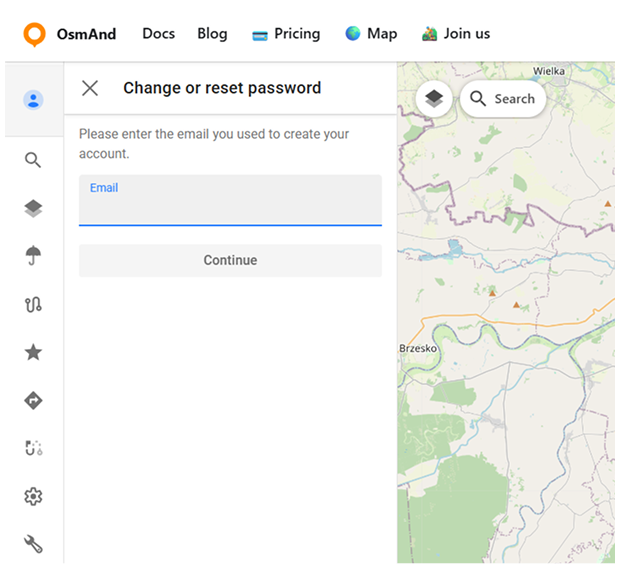
If you do not remember your password, use the I don’t have or forgot password link in the login dialog. This opens the Change or reset password panel. Enter the email address you used to create your account and click Continue. A message with a verification code is sent to this email. On the next screen, type the verification code and your new password, then select Continue to confirm. When the code is accepted, your password is updated and you can log in to OsmAnd Web with the new credentials.
Change Email Address
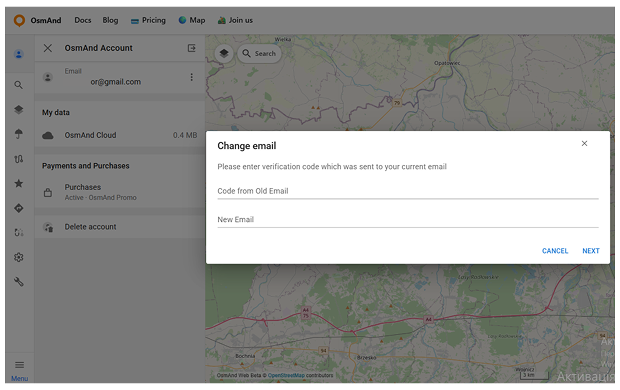
To update your email address, Go to General Menu → Account → Email → ⋮ → Change email
The Change email dialog appears. A verification code is sent to the current email address. Enter this code in the Code from Old Email field, specify the new address in New Email, then select Next. For security reasons, a confirmation message is sent to your new email address informing you that the account email has been updated.
Logout and Delete Account
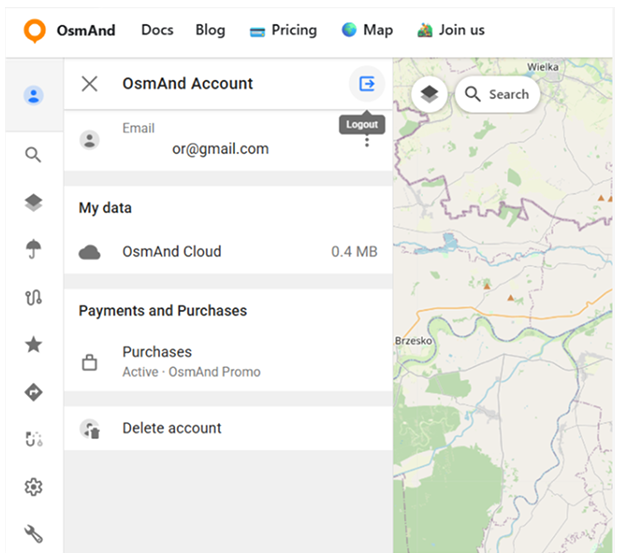
The OsmAnd Account panel contains controls for ending the current web session and permanently removing the account.
To log out, open OsmAnd Account and use the Logout button in the top-right corner of the panel (icon with an arrow leaving a square). Selecting Logout closes the account panel and ends the active session on the website.
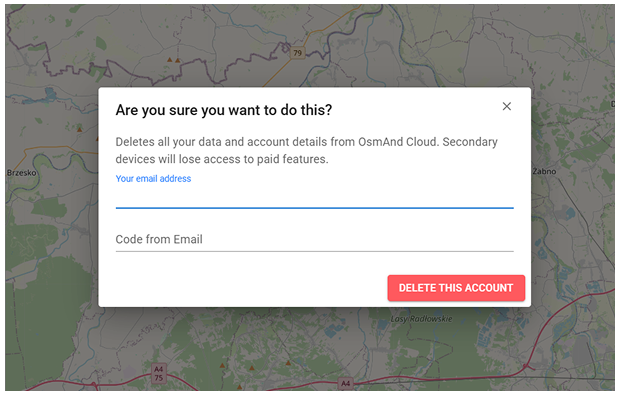
To delete an account, select Delete account at the bottom of the OsmAnd Account panel. A confirmation dialog appears with the message “Are you sure you want to do this?” and a short explanation that all data and account details will be removed from OsmAnd Cloud and secondary devices will lose access to paid features. A verification code is sent to the account email address. Enter the code in the Code from Email field and choose DELETE THIS ACCOUNT to complete the process. This operation is permanent and cannot be undone.