Tracks
Overview
The Web Planner gives you a simple way to work with your personal data right in the browser. After signing in, you can open your tracks, adjust them, create new ones, or upload files from your computer.
All changes are automatically synced through OsmAnd Cloud, so anything you update on the web appears on your devices, and anything you create on your phone shows up here as well. This makes it easy to move between platforms and keep your data consistent wherever you use OsmAnd.
How to use
It's a paid feature  . To use it, log in to your OsmAnd Pro account.
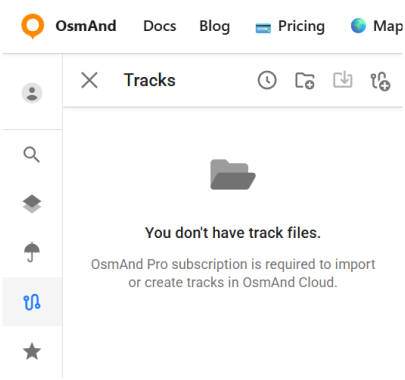
Tracks section contains all track-related tools and actions. The following options are available:
- Show tracks from OsmAnd Cloud.
- Adding tracks on the map (Visible on map folder).
- Looking all tracks info and graph
- Modify tracks and add it to Cloud.
- Download and delete tracks.
- Create new folders or delete it.
- Download folders as OSF or OBF collection.
Import Tracks
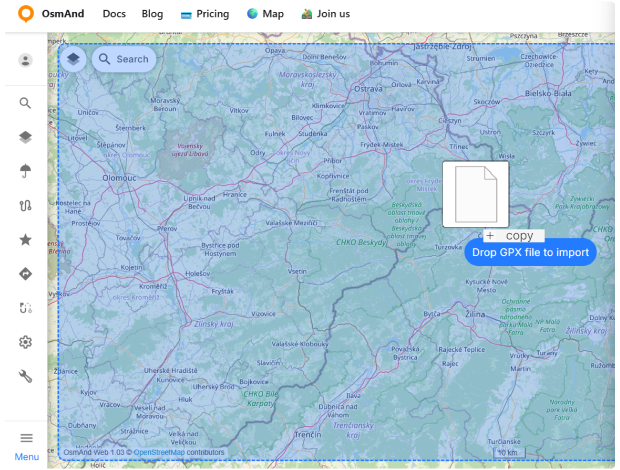
You can import GPX tracks into Web Planner either by using the Import button or by dragging and dropping GPX files directly onto the map.
To import a track using drag and drop:
- Open the Tracks section.
- Drag one or more GPX files from your computer.
- Drop the files onto the map or onto a specific track folder.
When a file is dragged over the map, the available drop area is highlighted. If you drop the file directly onto the map, it is imported into the Import folder. If you drop it onto an existing folder, it is imported into that folder instead.
After the import is complete, the track appears in the track list, is synchronized with OsmAnd Cloud, and becomes available on all devices connected to the same account.
Visible on the Map
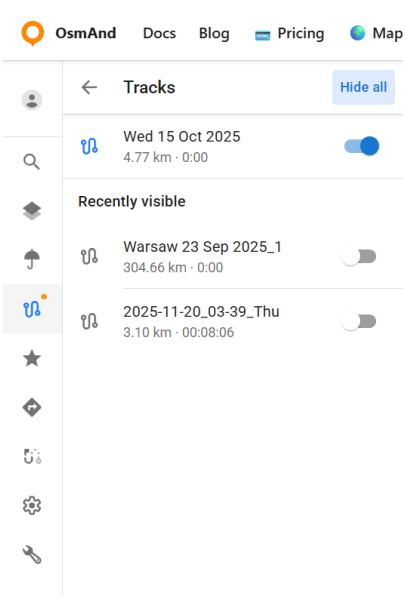
The Visible on map view lists all tracks that are currently displayed on the map. Any track can be added to this list from the main Tracks panel using the ⋮ → Make track visible option.
Tracks that are visible on the map are highlighted in blue, while tracks that are currently hidden appear in grey. A switch next to each track lets you quickly show or hide it. The Hide all button turns off all visible tracks at once.
Below the main list, the Recently visible section displays tracks that were shown on the map earlier. This makes it easy to turn a track back on without searching for it again in your folders or in OsmAnd Cloud.
Track folder menu
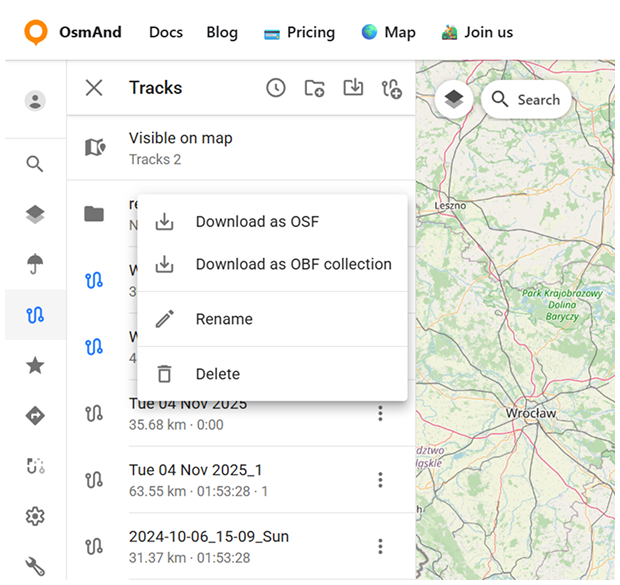
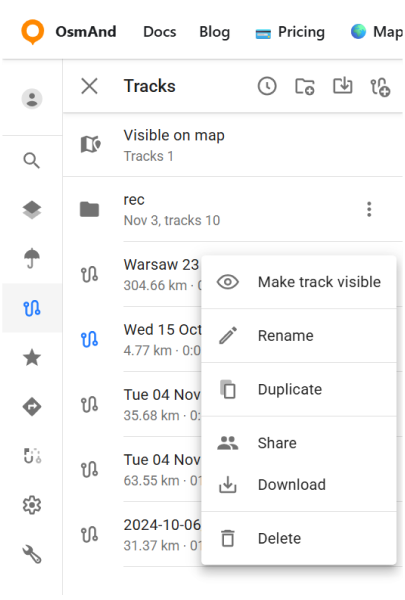
Click the three-dot button (⋮) to open the Track Folder menu. From here, you can:
- Download as OSF.
- Download as OBF Collection. Export the folder in OsmAnd Binary Format, choosing either an OBF file or a Travel OBF.
- OBF file. You can download an offline OBF map and open it with OsmAnd on your device. It is suitable for displaying a large number of tracks on the map.
- Travel OBF. You can also import a map of tracks as a travel book, which allows you to select individual tracks on the map and use them like normal GPX files. A travel book also supports features such as displaying tracks as points, filtering tracks by activity type, and filtering waypoints.
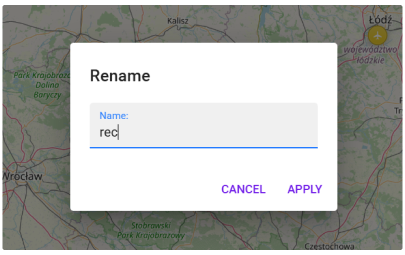
- Rename. Opens a dialog where you can enter a new name for the selected folder. The change is synced to OsmAnd Cloud and will appear on all connected devices.
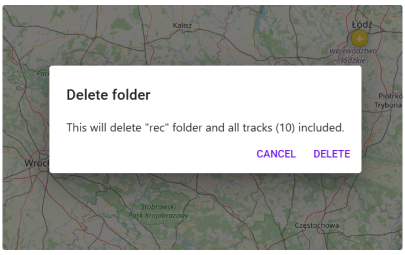
- Delete. Opens a confirmation dialog. Deleting a folder removes it permanently along with all tracks it contains. This action is also synced through OsmAnd Cloud.
Smart Folders
Smart Folders created on mobile devices can be synced and viewed in the web version via OsmAnd Cloud. To ensure they appear on the web, synchronization of OsmAnd Settings must be enabled in Cloud settings.
Go to: Menu → Settings → OsmAnd Cloud → Settings → Back up data
Smart Folders are currently stored as part of global settings, so they are uploaded to the Cloud only when Settings sync is active. After creating or editing a Smart Folder, it is recommended to run a manual sync to update the data.
On the web, Smart Folders are displayed in the track list with a distinct star icon, making them easy to distinguish from regular folders. The folder name is synchronized first, while the list of tracks depends on how the folder is configured on the device.
Tracks are displayed only if the Smart Folder configuration is supported on the web. This includes both filter settings and grouping options. If unsupported parameters are used (for example, nearest city), the folder may appear without tracks. For best compatibility, use common parameters such as activity, date, distance, or duration.
Smart Folder synchronization may vary depending on the platform and sync configuration. For the most consistent results, ensure that Cloud sync is enabled and up to date on all devices.
The three-dot menu (⋮) provides additional actions for the Smart Folder. You can Download as OSF, Download as OBF collection, Rename, or Delete the folder.


Cloud Tracks
GPX tracks that you have in OsmAnd Cloud will be available for display and editing after login. Only for Pro users and for OsmAnd Start users (who can download their data even after their Pro subscription has expired).
When you select a track, the map automatically centers and adjusts the zoom level to display the entire track within the visible map area.
You can also use the Focus button to hide all other favorites and tracks on the map, making it easier to review the selected track. Turn off Focus mode to restore the visibility of other map objects.
The following features are available after choosin cloud track:
- Information - displaying track data.
- Elevation - graph of elevation.
- Speed - speed graph.
- Slope - slope graph.
- Recalculate Elevation (Satellite) - recalculates elevation values for the selected track and shows them on the elevation graph.
- Road type - breaks the track into segments by road classification.
- Surface - shows the types of track surfaces along the route.
- Smoothness - displays segment smoothness based on OSM tags.

