Favorites
Overzicht
Favorieten in de Web Planner laten je belangrijke plaatsen direct op de kaart opslaan en beheren. Ze kunnen worden gebruikt om locaties te markeren waartoe je snel toegang wilt, ze in mappen te organiseren en ze te hergebruiken voor navigatie of routeplanning. De webinterface biedt handige tools om favorieten te bekijken, bewerken en te gebruiken tijdens het verkennen van de kaart, waarbij alle updates naadloos worden gesynchroniseerd over je OsmAnd Cloud.
Favorieten beheren

Na registratie voor een OsmAnd Pro en voor OsmAnd Start zijn je Favorieten in de Web Planner georganiseerd in mappen. Elke map groepeert opgeslagen plaatsen en biedt een reeks acties die beschikbaar zijn via het Favorietenmenu. De volgende acties zijn beschikbaar:
- Op kaart tonen - toon favorietenpunten uit de gekozen map op de kaart.
- Map vastmaken - zet een map bovenaan de Favorietenlijst voor snelle toegang. Vastgemaakte mappen worden gescheiden van andere mappen. Om een map uit de bovenste sectie te verwijderen, selecteer je Map losmaken. De Persoonlijke map is standaard vastgemaakt.
- Naam wijzigen - naam en beschrijving van favorietenmap.
- Delen - opent deelopties. Je kunt kiezen wie toegang heeft tot deze map.
- Downloaden - download de gekozen favorietenmap.
- Verwijderen - verwijder de gekozen favorietenmap.
Wanneer je een favorietenmap selecteert, centreert de kaart automatisch en past het zoomniveau aan om alle favorietpunten uit die map binnen het zichtbare kaartgebied weer te geven.
Je kunt ook de knop Focus gebruiken om alle andere favorieten en tracks op de kaart te verbergen, zodat je de geselecteerde map gemakkelijker kunt bekijken. Schakel de Focus-modus uit om de zichtbaarheid van andere kaartobjecten te herstellen.
Delen
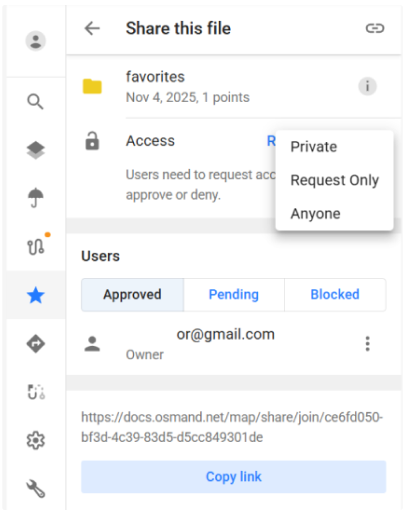
Het selecteren van Delen opent het deelscherm, waar toegang tot een Favorietenmap kan worden geconfigureerd. Een van de volgende toegangsmodi kan worden geselecteerd:
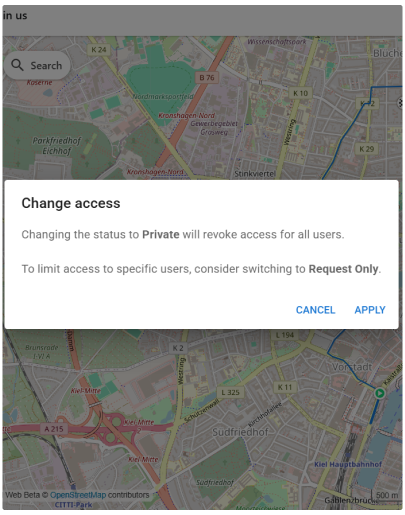
- Privé. Alleen jij kunt de map bekijken. Overschakelen naar Privé trekt de toegang in voor alle eerder goedgekeurde gebruikers. Er wordt een bevestigingsdialoog weergegeven voordat de wijziging wordt toegepast.
- Alleen aanvraag. Iedereen met de link kan toegang aanvragen. Aanvragen verschijnen in de Lijst in afwachting, waar ze kunnen worden goedgekeurd, geweigerd of geblokkeerd.
- Iedereen. Iedereen met de link kan de map onmiddellijk bekijken, zonder goedkeuring.
Afhankelijk van de geselecteerde toegangsmode wordt de knop Link kopiëren beschikbaar. De link kan worden gedeeld om te bekijken of om toegang aan te vragen.
Het deelscherm bevat drie gebruikerslijsten:
- Goedgekeurd — gebruikers die momenteel toegang hebben tot de map.
- In afwachting — gebruikers die toegang hebben aangevraagd en wachten op goedkeuring of afwijzing.
- Geblokkeerd — gebruikers die geen toegang mogen hebben of aanvragen.
Elke gebruikersvermelding bevat een menu waarmee hun status kan worden gewijzigd of de toegang kan worden verwijderd.
Tijdens de toegangconfiguratie kunnen de volgende dialogen verschijnen:
- Toegang wijzigen. Wordt weergegeven bij het overschakelen van de map naar Privé. De dialoog waarschuwt dat alle bestaande gebruikers toegang wordt ingetrokken voordat de wijziging wordt bevestigd.
- Toegangsaanvragen. Wordt weergegeven bij het beheren van gebruikers in de Lijst in afwachting, waarmee toegangsaanvragen kunnen worden goedgekeurd of geweigerd.
Favorietendetails
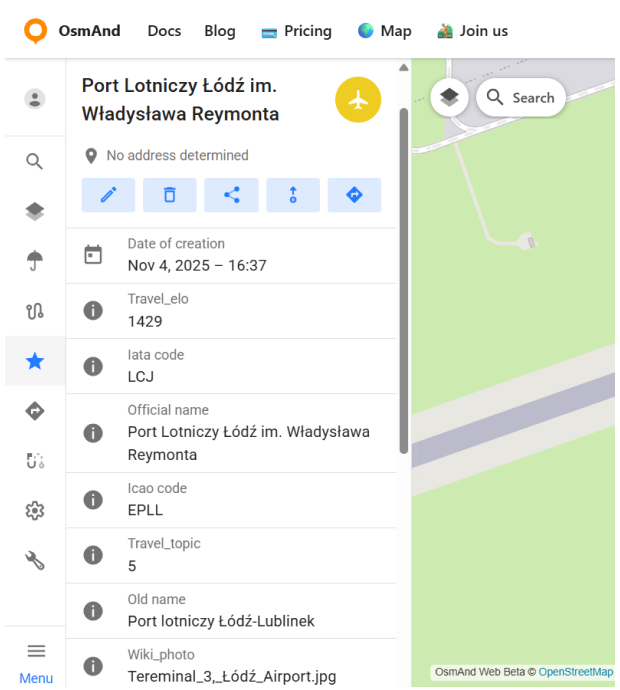
Het selecteren van een favoriet opent het Details-paneel. Dit paneel verschijnt wanneer je op een favoriet direct op de kaart klikt of deze selecteert uit een favorietenmap.
De Details-weergave biedt informatie die is gekoppeld aan de geselecteerde plaats en hangt af van de beschikbare gegevens voor die specifieke favoriet. Op zijn minst bevat het de locatie op de kaart en de geografische coördinaten. Voor plaatsen die zijn gekoppeld aan OpenStreetMap-objecten of verrijkte bronnen, kunnen aanvullende metadata worden weergegeven, zoals namen, categorieën, identificatoren of referentielinks (bijvoorbeeld Wikipedia- of Wikidata-links).
Favorietenacties
Om toe te voegen een nieuw favorietpunt, klik je met de rechtermuisknop op het scherm.
Om een bestaande favoriet te bewerken, klik je op het favorietpunt direct op de kaart of selecteer je het uit een favorietenmap. Dit opent het Details-paneel, waar de Bewerk-actie beschikbaar is. Bewerken kan ook worden gestart vanuit het driepuntmenu (⋮) naast de favoriet in de Favorietenlijst.
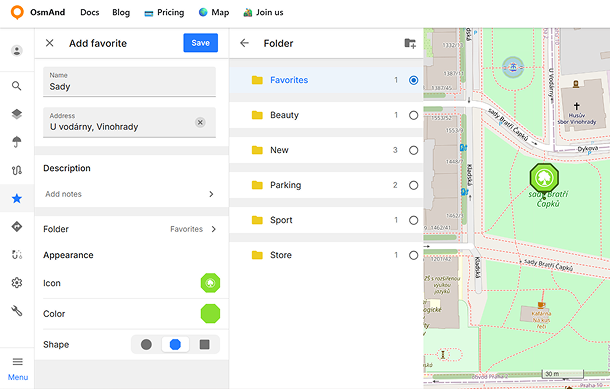
Het paneel Favoriet bewerken laat je de hoofdeigenschappen van de favoriet wijzigen, waaronder de naam, het adres, de beschrijving, de map, het pictogram, de kleur en de vorm. De geselecteerde weergave wordt zowel in het bewerkingspaneel als direct op de kaart weergegeven.
Favorieten bewerken
Het veld Adres ondersteunt automatische adresdetectie op basis van de geselecteerde kaartlocatie. Het veld kan in verschillende toestanden verschijnen:
- Bezig met zoeken... — wordt weergegeven terwijl het adres automatisch wordt bepaald.
- Leeg veld — wordt weergegeven nadat het adres is gewist. In deze toestand kan de locatieknop worden gebruikt om het adres opnieuw automatisch te detecteren.
- Ingevuld veld — geeft het automatisch gedetecteerde adres of handmatig ingevoerde tekst weer.
Het adresveld bevat ook snelle acties om het gedetecteerde adres te wissen of te herstellen.
De sectie Beschrijving laat je notities of aanvullende informatie aan de favoriet toevoegen. Als je Notities toevoegen selecteert, wordt de beschrijvingseditor geopend in een secundair paneel. Als er al een beschrijving is toegevoegd, wordt een korte voorvertoning weergegeven in het hoofdpaneel en beperkt tot twee tekstregels. De beschrijvingseditor ondersteunt opgemaakte tekst en bewaart wijzigingen automatisch bij het terugkeren naar het vorige paneel.
Favorieten kunnen in mappen worden georganiseerd voor eenvoudiger beheer en snelle toegang. Als je het item Map selecteert, wordt een secundair paneel geopend waarin beschikbare mappen kunnen worden geselecteerd. De eerder gebruikte map wordt standaard automatisch geselecteerd. Elke map toont ook het aantal favorietpunten dat erin is opgeslagen.
Nieuwe mappen kunnen direct vanuit het mappenselectiepaneel worden gemaakt. Als je de knop Map toevoegen selecteert, wordt een dialoogvenster geopend waarin je de mapnaam kunt invoeren en de locatie in de Favorietenlijst kunt kiezen.
Het dialoogvenster bevat ook een Geavanceerd-gedeelte, waarin standaardweergave-instellingen voor de map kunnen worden geconfigureerd. Deze instellingen omvatten de standaardkleur, het pictogram en de vorm die automatisch worden toegepast op favorietpunten die aan deze map worden toegevoegd.
Uiterlijk
De sectie Uiterlijk laat je aanpassen hoe de favoriet op de kaart wordt weergegeven. De volgende eigenschappen zijn beschikbaar: pictogram, kleur, vorm en pictogram.
Als je Pictogram selecteert, wordt een secundair paneel geopend met gegroepeerde pictogramcategorieën.
- Pictogrammen zijn gegroepeerd per categorie.
- Recent gebruikte pictogrammen worden eerst weergegeven.
- Het momenteel geselecteerde pictogram is gemarkeerd.
- De voorvertoning gebruikt de geselecteerde vorm en kleur.
Als je Kleur selecteert, wordt het kleurenpaletpaneel geopend.
- Het palet bevat voorgedefinieerde en door de gebruiker gedefinieerde kleuren.
- Aangepaste kleuren kunnen worden toegevoegd met de kleurenkiezer.
- Kleuren kunnen worden bewerkt, gedupliceerd of verwijderd via het contextmenu.
- Nieuw toegevoegde kleuren worden opgeslagen in het gebruikerspalet en blijven later beschikbaar.
De optie Vorm definieert de achtergrondvorm die voor de favorietmarkering wordt gebruikt. De volgende vormen zijn beschikbaar: cirkel, vierkant en achthoek.
De voorvertoning van het uiterlijk wordt direct bijgewerkt in het bewerkingspaneel en op de kaart bij het wijzigen van het pictogram, de kleur of de vorm.

Andere acties
Naast bewerken biedt elke favoriet verschillende andere acties die kunnen worden geopend vanuit het Details-paneel of vanuit het driepuntmenu (⋮) in de Favorietenlijst:
- Verwijderen - verwijdert de geselecteerde favoriet permanent. Deze actie is beschikbaar zowel vanuit het Details-paneel als vanuit het driepuntmenu. Verwijdering heeft invloed op de favoriet op alle apparaten na synchronisatie.
- Delen - deze actie laat je een directe link naar de plaats delen.
- Route vanaf - stelt de geselecteerde favoriet in als startpunt voor routeplanning. Het Route-paneel opent automatisch, waarmee je een bestemming en navigatieprofiel kunt kiezen.
- Navigatie - stelt de geselecteerde favoriet in als bestemmingspunt.