Astronomy
Astronomy is currently in beta on Android.
On iOS, the plugin is available through the iOS beta (TestFlight) program.
Overview
Astronomy plugin is a paid feature.
The Astronomy plugin displays a sky overlay with stars, constellations, the Sun, the Moon, and planets directly on the map. It uses an offline celestial catalog to calculate and display the current and future positions of celestial objects. The plugin also allows users to explore the night sky, identify objects, and plan observations by viewing their paths across the sky.
The plugin works fully offline using built-in star catalogs, allowing sky exploration even without an internet connection.
Required Setup Parameters
The following settings are required to display Astronomy overlay:
- Enable Astronomy plugin from the Plugins section of the Main Menu
- Use Menu → Star map to open dedicated screen with star sky, settings and time controls.
- Select time and date using the controls on the Star map screen.
- Adjust what is shown on the Star map using Configure View — for example, toggle visible objects and rendering aids.
- Tap the Close (X) button at the top of the Star map screen to exit Star map and return to the Earth map.
On Android, the plugin works with both Map rendering engines but performs best in OpenGL mode.
Star Map Screen
- Android
- iOS
Go to: Enabled plugin → Menu → Star map
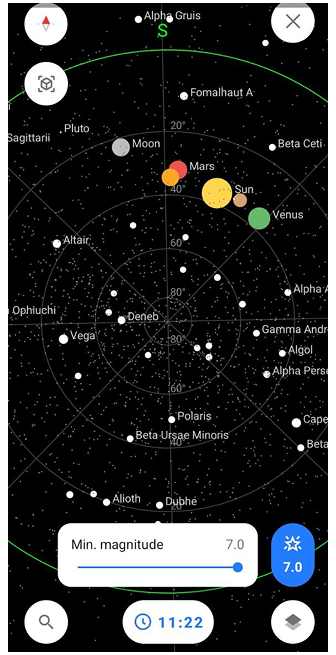
Go to: Enabled plugin → Menu → Star map
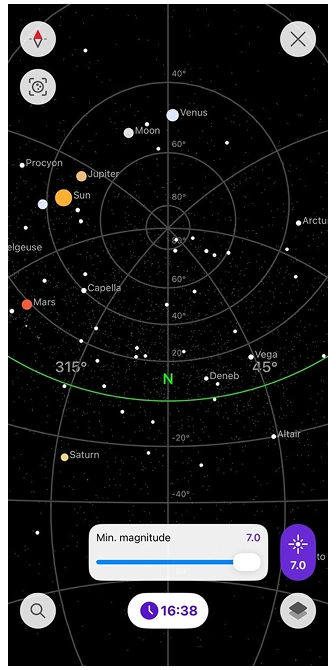
The dedicated Star map screen shows interactive celestial dome with stars, constellations, planets, Sun and Moon paths. At the bottom of the screen, you can access the following controls:
- Search — opens the Search screen where you can search for celestial objects and browse sky catalogs and categories.
- Time and date — lets you change the date and time to observe the sky at different moments in the past or future. This is useful for planning observations, tracking object movement, or learning how the sky changes over time. If you set a custom date/time, the chip shows the full date and time, and a reset button appears next to it to return to the current system time.
- Magnitude filter — allows you to limit which stars are displayed based on their brightness. Use the slider to set the maximum magnitude value. Lower values show only the brightest stars, while higher values reveal dimmer stars and deep-sky objects. This helps reduce visual clutter or simulate what is visible to the naked eye.
- Configure view — opens display settings that control how objects, paths, and reference lines are shown on the Star map.
The screen renders the full sky hemisphere above your location, aligned with the compass direction. The Star map can be rotated manually by dragging the screen. Manual rotation of the Star map does not affect the orientation of the Earth map. The Earth map always follows the map orientation mode selected in your settings. Tap celestial objects for details like magnitude, rising/setting times or paths.
The Star map can also align with your device orientation when compass mode is enabled. In this mode, the sky rotates according to the device's accelerometer and compass sensors, allowing you to explore the sky by physically moving your phone.
Context Menu
- Android
- iOS
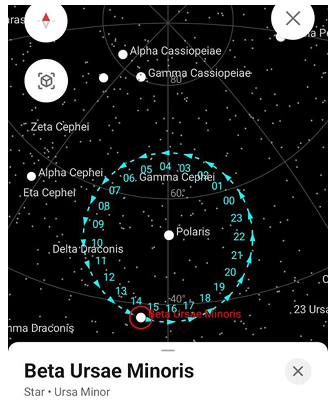
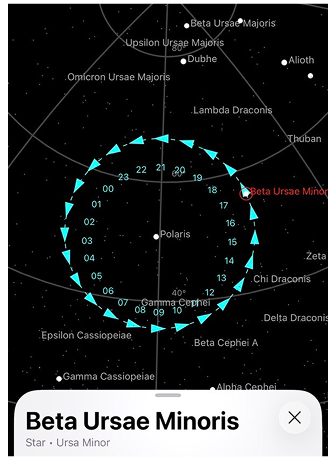
The Context Menu provides detailed information about celestial objects and tools for observing them. It opens when you tap a celestial object on the Star map.
When an object is selected, it is highlighted on the Star map with a red circle marker. Its daily motion is also visualized by an hour ring (00–23), showing where the object will appear in the sky at each hour of the local day and the direction of its movement.
The Context Menu appears at the bottom of the screen and contains object information, quick actions, and tabs for exploring the object's visibility and observation schedule.
Object Information
- Android
- iOS


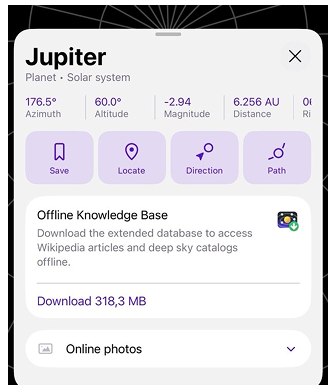
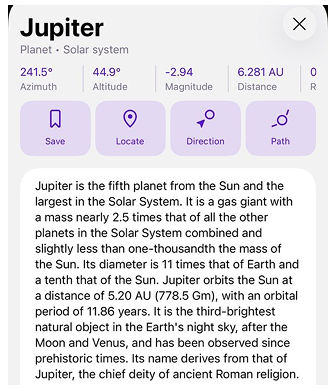
The top section of the Context Menu displays the object's name and classification. Below the name, the object type and its parent constellation or group are shown. For example:
- Beta Ursae Minoris — Star • Ursa Minor
- Moon — Satellite • Earth
- Jupiter — Planet • Solar system
Quick information blocks display key observational parameters:
- Rise – the time when the object rises above the horizon.
- Set – the time when the object sets below the horizon.
- Azimuth – the object's direction relative to north (0°–360°).
- Altitude – the object's height above the horizon.
- Magnitude – the brightness of the object as seen from Earth.
- Distance (iOS only) – the distance from Earth to the selected celestial object.
These values update dynamically based on the selected time and the user's location.
Below the quick information blocks, the menu may also include additional information and resources about the object:
- Offline Knowledge Base – Allows you to download an extended database with Wikipedia articles and deep sky catalogues for offline use. After downloading, detailed information about celestial objects can be viewed directly in the app without an internet connection.
- Read on Wikipedia – Opens the object's Wikipedia article.
- Designations – Shows alternative names and catalogue identifiers for the object (for example, HD, HIP, NGC). This section is available for objects that have catalog entries, such as stars and deep sky objects. If the object does not have a common name, one of these designations is used as the primary name.
- Online photos – Displays available photos related to the selected celestial object.
Actions
Below the object information, the Context Menu provides several actions for interacting with the selected celestial object:
- Save – Adds the object to your Favorites list for quick access.
- Locate – Centers the selected object on the Star map.
- Direction – Shows the direction to the object on the map, helping you orient yourself while observing the sky.
- Path – Displays the object's daily trajectory across the sky, allowing you to see how it moves during the day.
Visibility Graph
- Android
- iOS

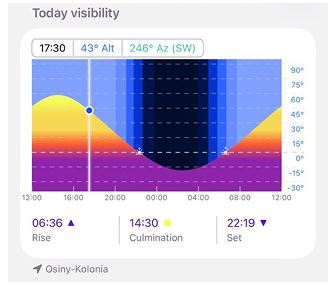
The Visibility tab shows how the selected object moves across the sky during a 24-hour period.
The graph displays the object's altitude above the horizon over time.
- The horizontal axis represents time from 12:00 to 12:00 the next day.
- The vertical axis represents altitude from −30° to +90°.
The colored curve shows the object's altitude throughout the day.
The background of the graph represents the state of the sky and changes depending on the Sun's position. This helps identify when observations are possible.
The colors represent different sky conditions:
- light blue — daytime
- darker blue — twilight
- dark blue / black — night
The color of the object's trajectory also reflects its altitude:
- yellow – high in the sky (best visibility)
- orange – medium altitude
- red – close to the horizon
- purple – below the horizon (not visible)
A movable indicator allows you to explore the object's position at different times. When the indicator is moved, the current time, altitude, and azimuth values are updated. The azimuth value also includes the corresponding compass direction (for example, 354° Az (N)).
Below the graph, important observation events are displayed:
- Rise – when the object rises above the horizon.
- Culmination – when the object reaches its highest altitude.
- Set – when the object sets below the horizon. If the object never rises or never sets, the corresponding values are hidden.
The graph opens with the indicator positioned at the current system time. The location used for calculations is shown below the graph. The location is displayed as a city name.
Observation Schedule
- Android
- iOS

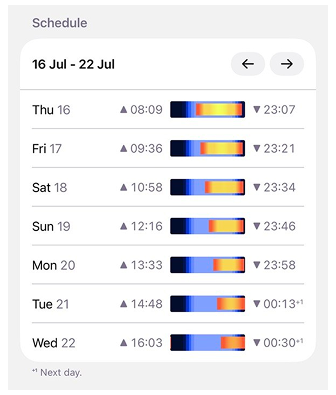
The Schedule tab displays the visibility of the selected object for the current week. Each row represents one day and includes:
- the day of the week
- the date
- rise time
- set time. If the set time occurs on the next day, it is marked with ⁺¹
- a small visibility graph for that day
The mini graph shows when the object is visible during the day and how its altitude changes. The colored section of the bar represents the period when the object is above the horizon. The mini graph represents the time range from 00:00 to 23:59 for the selected day.
You can navigate between weeks using the arrow buttons in the Schedule header. The calendar button allows you to return to the current week.
AR Star Finding (Camera Mode)
- Android
- iOS
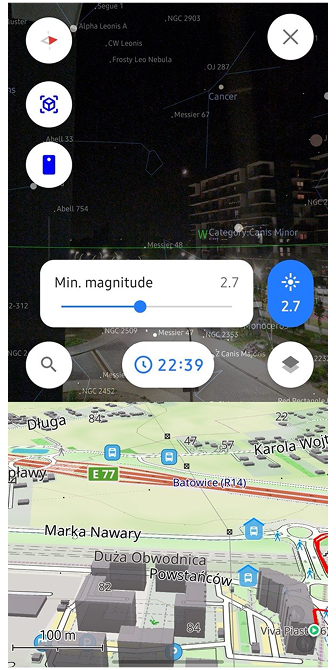
Go to: Enabled plugin → Menu → Star map → AR mode
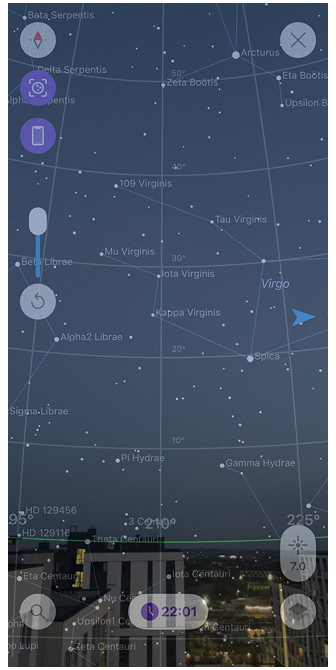
Go to: Enabled plugin → Menu → Star map → AR mode
The Astronomy layer works with your device camera to enable Augmented Reality (AR) stargazing. Point your phone camera at the real night sky and see stars, planets, constellations, Sun/Moon overlaid in real-time.
How AR Star Finding works:
- Live camera view shows real sky with transparent astronomical overlays aligned to horizon/compass.
- Move camera to scan sky — objects highlight when they appear in your field of view.
- Tap highlighted objects to see azimuth, altitude, magnitude, rise/set times, and open the corresponding Wikipedia article.
- Compass calibration required for accurate alignment (wave phone in figure-8 if needed).
The AR mode uses device sensors (gyroscope, accelerometer, and compass) to align celestial objects with the real sky.
Perfect for:
- Identifying faint stars/planets invisible to naked eye.
- Locating constellations by moving phone across sky.
- Real-time sky navigation during hikes or camping.
Configure View
- Android
- iOS
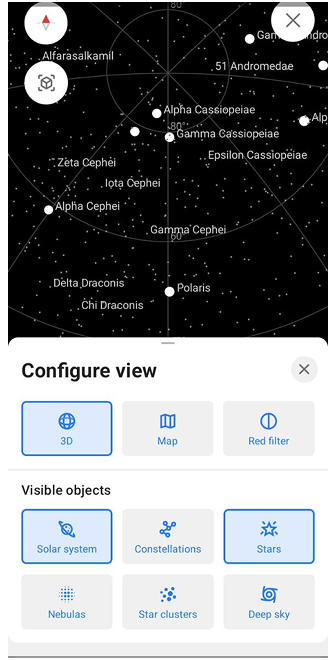

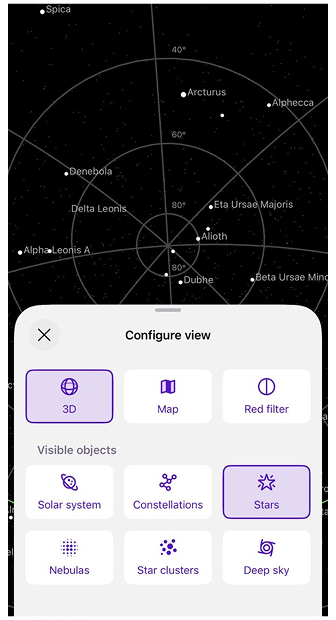
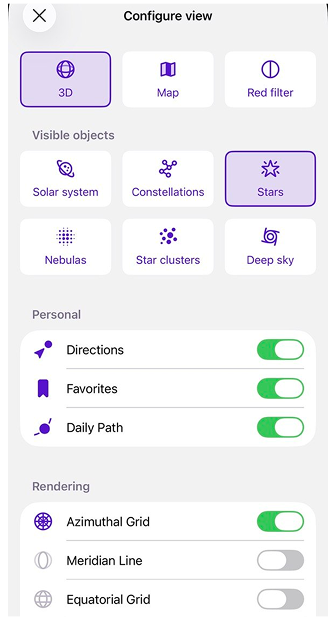
Configure view allows you to control how the Star map is displayed by enabling or disabling visual modes, objects, and rendering aids.
To open Configure View, tap the Configure View button in the bottom-right corner of the Star map screen. The button is represented by a layer-style icon (stacked shapes), indicating display and layer settings. Configure View opens in a Half state, showing the main display options. Swipe the panel upwards to expand it into Full state and access all available settings. To close Configure View, swipe the panel downwards once to return to the Half state, swipe downwards again to close it completely, or tap anywhere on the map outside the panel. You also can tap the Close (X) button in the top-right corner of the panel.
Modes and Actions
- Android
- iOS
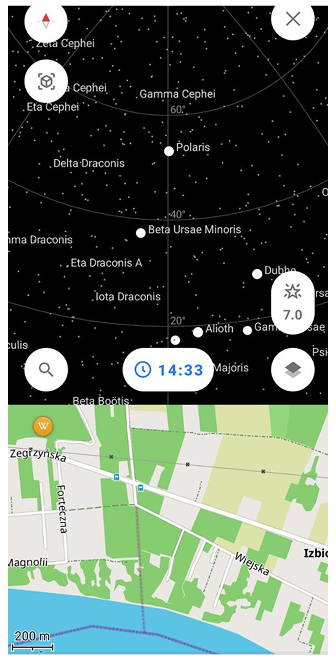
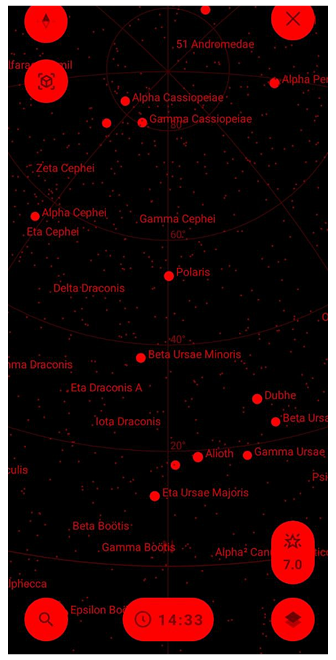
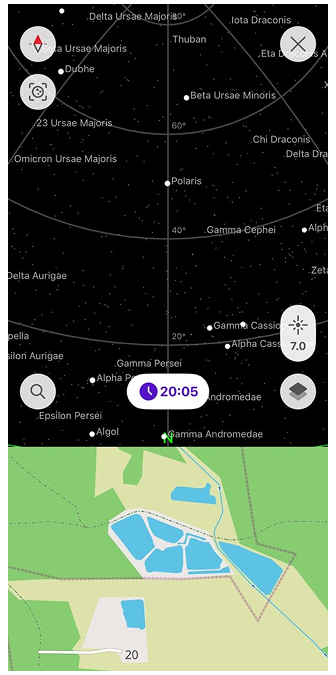
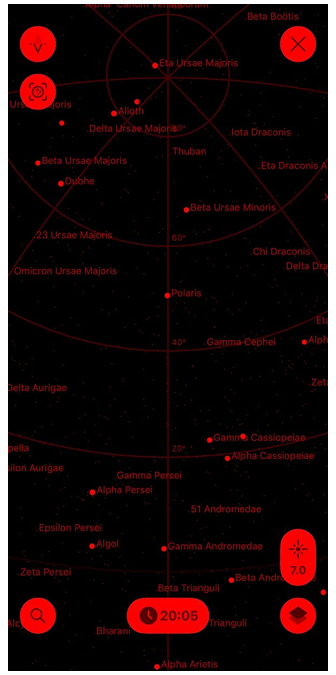
This section controls the main display modes of the Star map.
- 2D / 3D. Switches between a celestial path view (2D), which shows the sky as a projected dome with object paths, and a globe-style sky view (3D) representing the celestial sphere.
- Map. Enables an additional Earth map view displayed below the Star map, allowing you to relate celestial objects to your real geographic surroundings.
- Red filter. Applies a red color filter to the entire screen to reduce light pollution and preserve night vision during dark-sky observations.
Visible Objects
- Android
- iOS


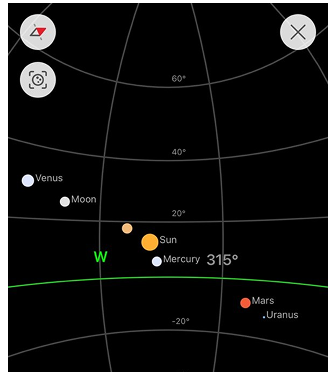
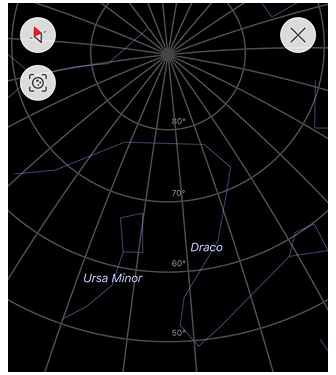
This section lets you choose which types of celestial objects are shown on the Star map.
| Object | Description |
|---|---|
| Solar system | Displays the Sun, Moon, and visible planets. |
| Constellations | Shows constellation lines and patterns formed by stars. |
| Stars | Displays individual stars visible on the Star map. |
| Nebulas | Shows nebula objects where available. |
| Star clusters | Displays star clusters as separate celestial objects. |
| Deep sky | Toggles deep-sky objects such as galaxies, galaxy clusters, and black holes. |
Personal Display Options
Personal display options control additional visual aids related to user focus and observation.
| Option | Description |
|---|---|
| Direction | Shows a directional indicator to help orient your view. |
| Daily Path | Displays the daily path of selected celestial objects across the sky. |
| Favorites | Highlights or displays objects marked as favorites. |
Rendering Aids
Rendering aids add reference lines and grids to help orient the Star map.
| Aid | Description |
|---|---|
| Azimuthal Grid | Adds an azimuth-based grid for horizontal sky orientation. |
| Meridian Line | Displays the meridian line crossing the sky from north to south. |
| Equatorial Grid | Shows the celestial equatorial coordinate grid. |
| Ecliptic Line | Displays the ecliptic line representing the apparent path of the Sun. |
| Equator Line | Displays the Earth's equatorial projection on the celestial sphere, helping visualize the Earth's rotation relative to the sky. |
| Galactic Line | Shows the plane of the Milky Way galaxy across the sky, indicating the main direction of the galactic disk. |
Search
- Android
- iOS
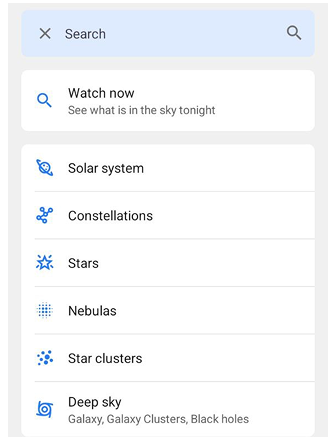
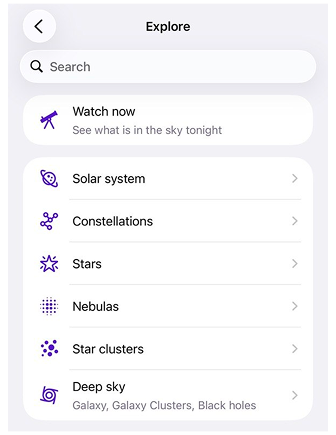
The Search feature (Explore on iOS) in the Astronomy plugin allows you to find celestial objects, explore sky categories, and access observation data. To open Search, tap the Search button on the Star map. This opens the Search screen, which provides several sections for discovering and organizing celestial objects. The Search screen includes the following sections:
1. Watch now
The Watch now section highlights celestial objects that are visible right now or tonight. This section acts as a recommendation tool, showing objects that are best suited for observation based on your current location and time.
2. Categories
The Categories section allows you to browse objects by type: Solar system, Constellations, Stars, Nebulas, Star clusters, and Deep sky. Each category opens a list of objects with key information: object name, type or constellation, magnitude (brightness), and rise or set time (if applicable).
Sorting and Filters
- Android
- iOS
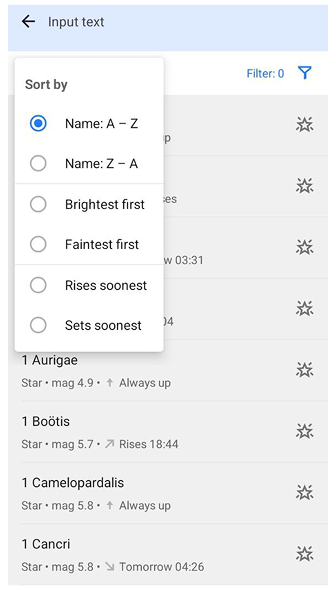
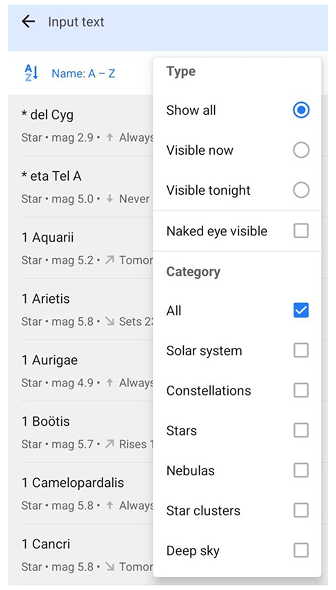
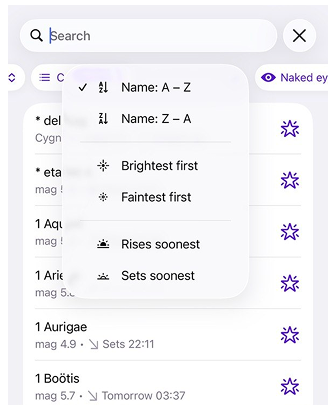
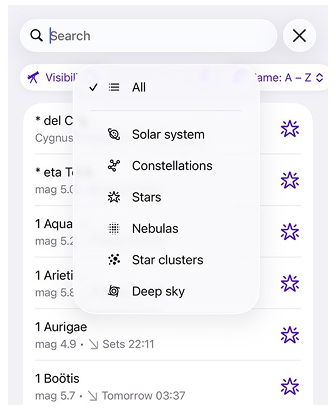
Tap the search bar to open the full search interface. You can refine results using sorting and filtering options.
You can sort objects by:
- Name (A–Z or Z–A)
- Brightest first
- Faintest first
- Rises soonest
- Sets soonest
Filters help narrow down visible objects.
Visibility
- Show all — displays all objects
- Visible now — objects currently above the horizon
- Visible tonight — objects visible between sunset and sunrise
Additional filters
- Naked eye visible — shows only objects with magnitude ≤ 6
Categories
You can filter results by object type. Selecting specific categories automatically disables the All option.
My Data
- Android
- iOS


The My Data section contains objects that the user has interacted with. This section includes three lists:
- Favorites — objects saved from the context menu.
- Daily Path — objects for which the daily motion path is enabled.
- Directions — objects with an active direction indicator on the Star map.
Selecting an item opens the object's context menu.
Catalogs
- Android
- iOS

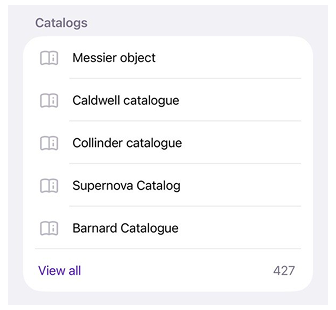
The Catalogs section provides access to astronomical catalogs available in the Astronomy plugin.
Catalogs contain large collections of celestial objects such as stars, galaxies, nebulae, and star clusters. Opening a catalog displays a list of objects included in that catalog.