Favorites
Overview
Favorites in the Web Planner let you save and manage important places directly on the map. They can be used to mark locations you want quick access to, organize them into folders, and reuse them for navigation or route planning. The web interface provides convenient tools to view, edit, and work with favorites while exploring the map, with all updates seamlessly synchronized across your OsmAnd Cloud.
Manage Favorites

After signing in to an OsmAnd Pro or OsmAnd Start account, your Favorites in the Web Planner are organized into folders. Each folder groups saved places and provides a set of actions available from the Favorites menu. The following actions are available:
- Show on map - show favorites points from the chosen folder on the map.
- Pin folder - pin a folder to the top of the Favorites list for quick access. Pinned folders are separated from other folders. To remove a folder from the top section, select Unpin folder. The Personal folder is pinned by default.
- Rename - name and description of favorite folder.
- Share - opens sharing options. You can choose who can access this folder.
- Download - download the chosen favorite folder.
- Delete - delete the chosen favorite folder.
When you select a favorites folder, the map automatically centers and adjusts the zoom level to display all favorite points from that folder within the visible map area.
You can also use the Focus button to hide all other favorites and tracks on the map, making it easier to review the selected folder. Turn off Focus mode to restore the visibility of other map objects.
Share
Selecting Share opens the sharing screen, where access to a Favorites folder can be configured. One of the following access modes can be selected:
- Private. Only you can view the folder. Switching to Private revokes access for all previously approved users. A confirmation dialog is shown before the change is applied.
- Request only. Anyone with the link can request access. Requests appear in the Pending list, where they can be approved, denied, or blocked.
- Anyone. Anyone with the link can view the folder immediately, without approval.
Depending on the selected access mode, the Copy link button becomes available. The link can be shared to allow viewing or to request access.
The sharing screen includes three user lists:
- Approved — users who currently have access to the folder.
- Pending — users who have requested access and are awaiting approval or rejection.
- Blocked — users who are not allowed to access or request access.
Each user entry includes a menu that allows changing their status or removing access.
During access configuration, the following dialogs may appear:
- Change access. Displayed when switching the folder to Private. The dialog warns that all existing user access will be revoked before confirming the change.
- Access requests. Displayed when managing users in the Pending list, allowing access requests to be approved or denied.


Favorites Details
Selecting a favorite opens the Details panel. This panel appears when you click a favorite directly on the map or select it from a favorites folder.
The Details view provides information associated with the selected place and depends on the data available for that specific favorite. At a minimum, it includes the location on the map and its geographic coordinates. For places linked to OpenStreetMap objects or enriched sources, additional metadata may be shown, such as names, categories, identifiers, or reference links (for example, Wikipedia or Wikidata links).

Favorites Actions
To add a new favorite point, right-click on the screen.
To edit an existing favorite, click the favorite point either directly on the map or select it from a favorites folder. This opens the Details panel, where the Edit action is available. Editing can also be started from the three-dot menu (⋮) next to the favorite in the Favorites list.
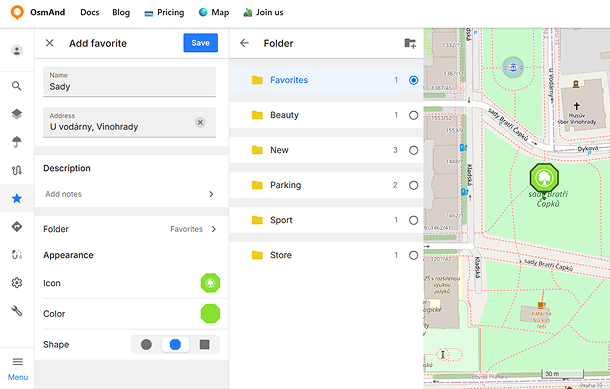
The Edit favorite panel allows changing the main properties of a favorite, including its name, address, description, folder, icon, color, and shape. The selected appearance is previewed both in the editing panel and directly on the map.
Edit Favorites
The Address field supports automatic address detection based on the selected map location. The field can appear in several states:
- Searching... — displayed while the address is being automatically determined.
- Empty field — displayed after clearing the address. In this state, the location button can be used to detect the address again automatically.
- Filled field — displays either the automatically detected address or manually entered text.
The address field also includes quick actions for clearing or restoring the detected address.
The Description section allows adding notes or additional information to the favorite. Selecting Add notes opens the description editor in a secondary panel. If a description has already been added, a short preview is displayed in the main panel and is limited to two lines of text. The description editor supports rich text formatting and automatically preserves changes when returning to the previous panel.
Favorites can be organized into folders for easier management and quick access. Selecting the Folder item opens a secondary panel where available folders can be selected. The previously used folder is selected automatically by default. Each folder also displays the number of favorite points stored inside it.
New folders can be created directly from the folder selection panel. Selecting the Add folder button opens a dialog where you can enter the folder name and choose its location in the Favorites list.
The dialog also includes an Advanced section, where default appearance settings for the folder can be configured. These settings include the default color, icon, and shape that will be automatically applied to favorite points added to this folder.
Appearance
The Appearance section allows customizing how the favorite is displayed on the map. The following properties are available: icon, color, and shape.
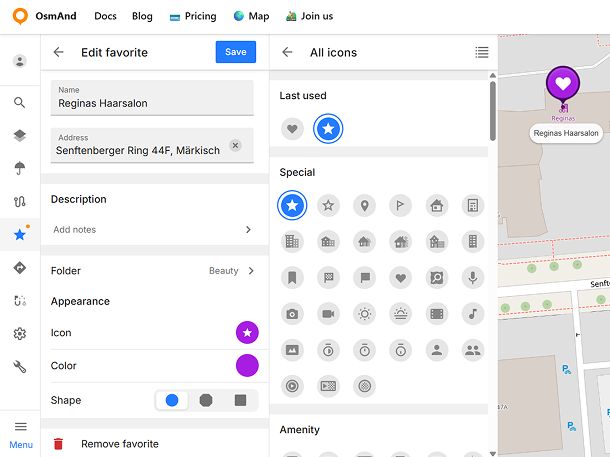
Selecting Icon opens a secondary panel with categorized icon groups.
- Icons are grouped by categories.
- Recently used icons are displayed first.
- The currently selected icon is highlighted.
- The preview uses the selected shape and color.
Selecting Color opens the color palette panel.
- The palette contains predefined and user-defined colors.
- Custom colors can be added using the color picker.
- Colors can be edited, duplicated, or removed through the context menu.
- Newly added colors are saved in the user palette and remain available later.
The Shape option defines the background form used for the favorite marker. The following shapes are available: circle, square, and octagon.
The appearance preview updates immediately both in the editing panel and on the map when changing the icon, color, or shape.
Other Actions
In addition to editing, each favorite provides several other actions that can be accessed from the Details panel or from the three-dot menu (⋮) in the Favorites list:
- Delete - removes the selected favorite permanently. This action is available both from the Details panel and from the three-dot menu. Deletion affects the favorite across all devices after synchronization.
- Share - this action allows you to share a direct link to the place.
- Directions from - sets the selected favorite as the start point for route planning. The Route panel opens automatically, allowing you to choose a destination and navigation profile.
- Navigation - sets the selected favorite as the destination point.